 Pensum
Help · Getting started
A tour of Pensum
Pensum offers this tour when you finish setting up your first budget. To take it again, choose Take the tour in your account menu (the circle with your initial, top right).
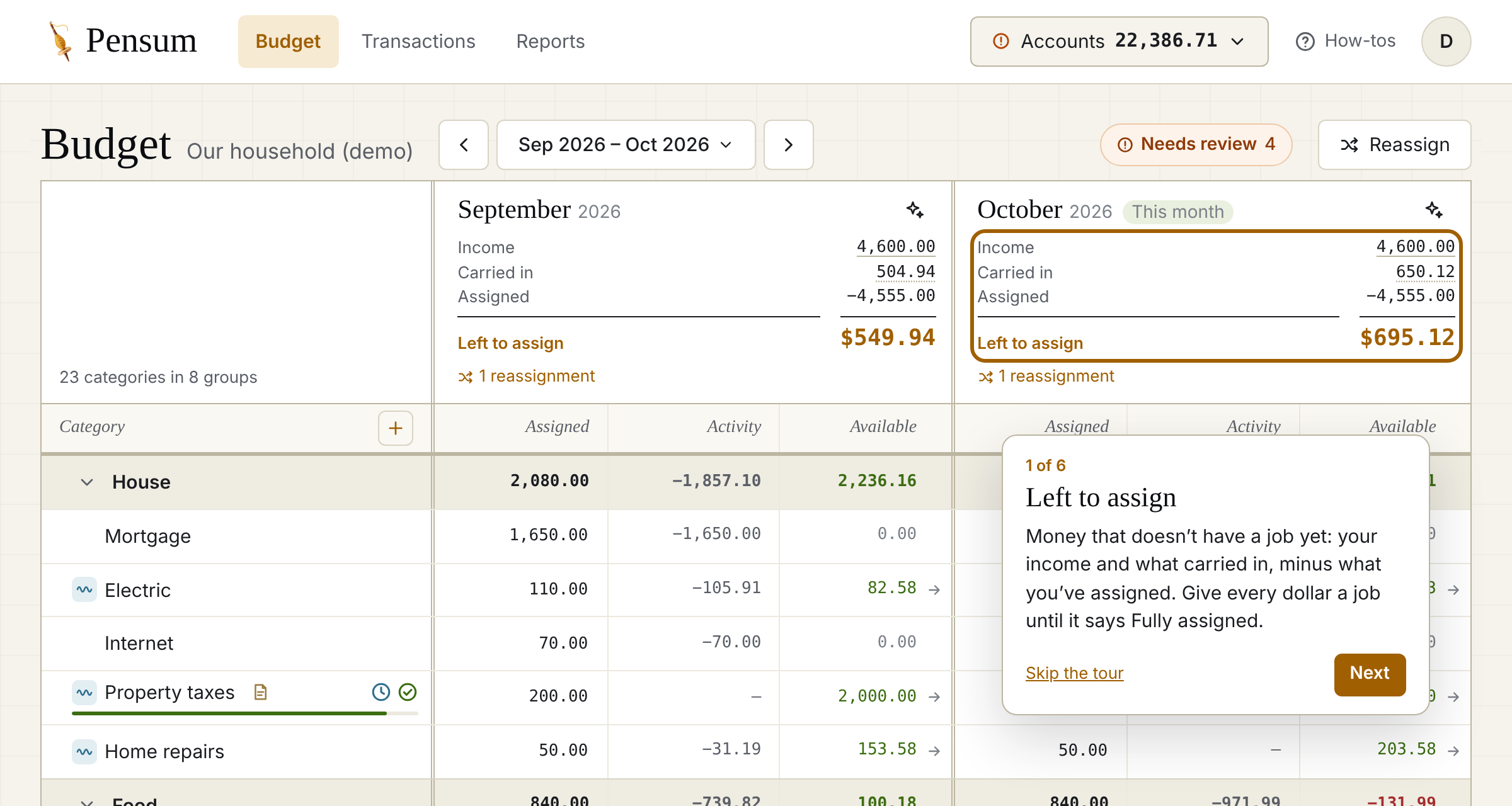
1. Left to assign
At the top of each month (on phones, at the top of Assign): money that doesn't have a job yet. Give every dollar a job until it says Fully assigned. More in Left to assign.
2. Assigning money
Click (or tap) a category's Assigned amount and type how much it gets this month. Start with bills and essentials, then savings and everything else.
3. Category types
The small icon before a category's name is its type: Spending, Sinking (saving up for a bigger bill), Savings or Holding. Click a category's name to change its type, set a target, or choose what happens at the end of the month. More in Category types.
4. Your accounts
The Accounts button (on Transactions, the list on the left) shows your accounts and their balances. Add an account, connect your bank, or import a file you downloaded from it. More in Adding and closing accounts.
5. New transactions
Transactions you import or sync wait in Needs review until you approve them. Approving takes a second, and teaches Pensum which category each payee belongs in. More in Reviewing imported transactions.
6. Reports
Reports answer questions like "Am I living within my means?" and "What am I paying for every month?" On a computer they're at the top; on a phone, in the tabs along the bottom. See Reports.
7. How-tos
How-tos explain each part of Pensum step by step and bring you back here. On a computer they're at the top, beside your account menu; on a phone, in the account menu, along with Contact support.
Still stuck? Signed in, choose Contact support in your account menu, or email [email protected]