 Pensum
Help · Accounts and transactions
Importing a bank file
Get the file from your bank
On your bank's website, open the account's activity and look for Download, Export or Download transactions. Choose a date range, and a format:
- QFX or OFX (sometimes called Quicken or Money): best. They include the bank's own ID for each transaction and its balance, so Pensum never imports one twice and can check its totals.
- CSV: works everywhere. Pensum asks once which column is which, and remembers.
- QIF: an older Quicken format; its categories become suggestions.
Import it
- On Transactions, choose Import and drop the file in (or click to choose it).
- Choose the account it goes into. A file with several accounts lets you pick each one's account, make a new one, or leave it out.
- CSV only: choose what each column holds: date, payee, and either an amount or outflow and inflow columns. Add the balance column if there is one, to check totals.
- Review each row, then import.
Try importing a sample file in the demo
What the review shows
| New | Not in Pensum yet. It's imported, waiting for review. |
| Matches your entry | Something you already entered: same amount, a few days apart (or the same payee further off). It's merged into yours, keeping your category and memo. |
| Already imported | Skipped. |
| Before the starting balance | Already counted in the account's starting balance. Skipped. |
| On the start date | Include it only if it wasn't in the balance you entered. |
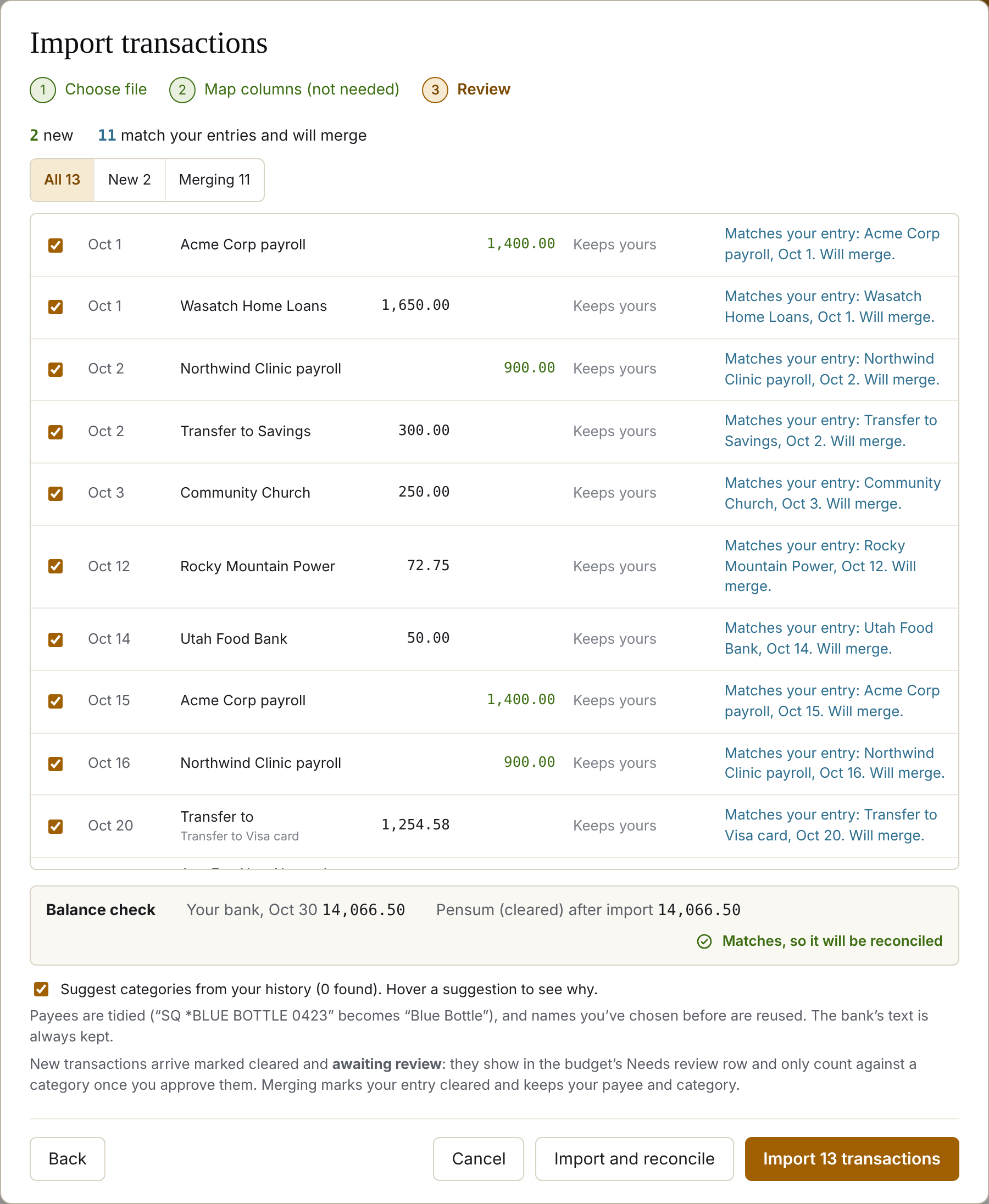
Uncheck anything you don't want.
The balance check
When the file includes the bank's balance, Pensum compares it with the account's cleared balance after the import. If they match, everything cleared through that date is marked reconciled. If not, you'll see by how much. See When the balance doesn't match.
Did this help?
Still stuck? Signed in, choose Contact support in your account menu, or email [email protected]