 Pensum
Help · Reconciling
Reconciling an account
Reconciling means confirming that Pensum's balance matches your bank's on a date. Once it does, everything cleared through that date is reconciled: confirmed, and marked so it doesn't change by accident.
Open it with Reconcile under the account list (or the pencil beside an account, then Reconcile…).
See an account reconciled in the demo
Three ways to check
Reconcile a statement
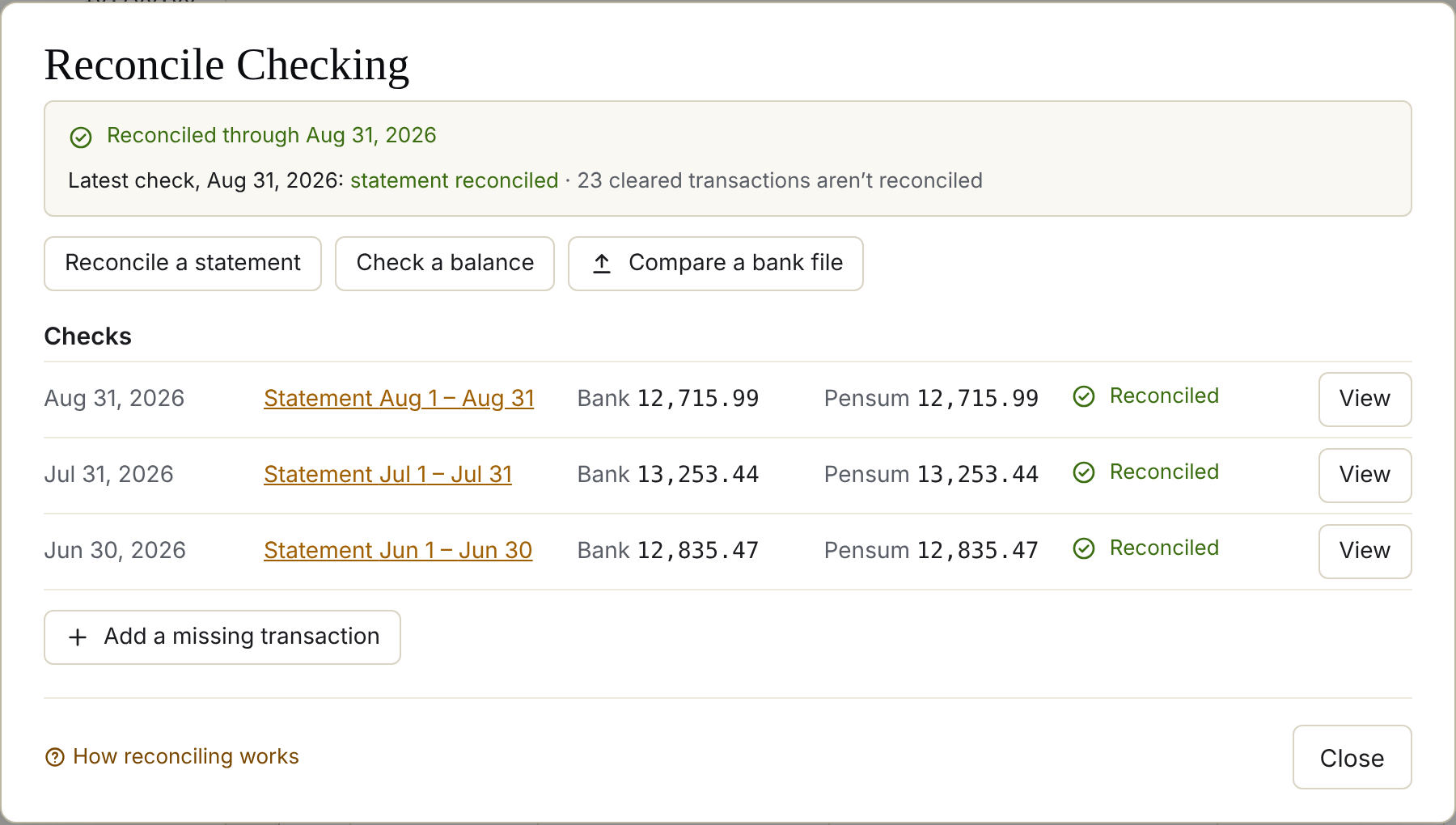
From your bank or card statement, enter its dates and closing balance. Pensum lists the transactions in that period: tick each one that's on the statement. When the ticked ones add up to the closing balance, reconcile them.
Best for credit cards and monthly statements.
Check a balance
Enter a date and the bank's balance at the end of that day (from its website or app). If Pensum's cleared balance matches, everything it covers is marked reconciled.
The quickest check: do it whenever you're looking at your bank anyway.
Compare a bank file
Choose a file downloaded from your bank. Pensum lists what's in the file but not in Pensum, and what's in Pensum but not in the file, so you can add or remove the difference.
Done for you
You often don't need to do anything: when an imported file's balance, or bank sync's, matches yours exactly, everything cleared through that date is reconciled by itself.
Reconciled transactions
- Changing a reconciled transaction's amount, or un-clearing it, takes it out of reconciled (Pensum asks first).
- Changing its payee, category or memo doesn't.
- Undo beside a check unreconciles what it marked.
The account list shows a check mark beside accounts that match, and a warning when the latest check is off. If it doesn't match, see When the balance doesn't match.
Still stuck? Signed in, choose Contact support in your account menu, or email [email protected]