 Pensum
Help · Budgeting
Overspending and reassigning
When you spend more than a category has, its Available turns red.
See an overspent category in the demo
Cover it from another category
Move money from a category that can spare it:
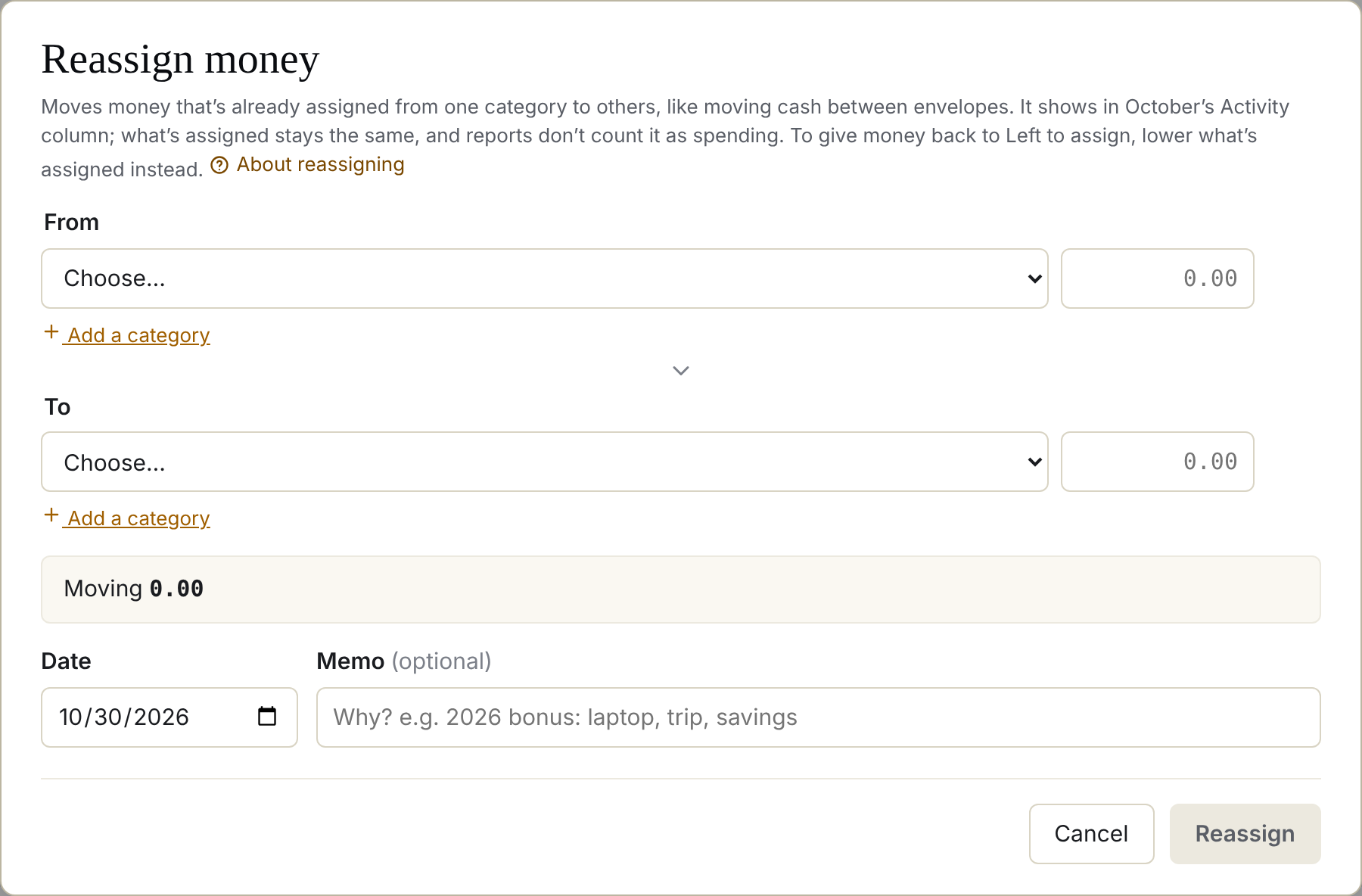
- Choose Reassign at the top of the budget (on phones, the Reassign button beside the month).
- Pick where the money comes from, where it goes, and how much.
- Save.
A reassignment counts in each category's activity, not in what you assigned, so your original plan stays in place. Reassignments are listed with your transactions, where you can edit or delete them.
See some reassignments in the demo
Cover it from Left to assign
If you have money Left to assign, raise the overspent category's Assigned amount instead. Or, from the month's actions (the sparkle button beside the month), choose Cover overspent categories to bring every negative balance back to zero at once.
Carrying it into next month
The third option is to handle the overspending next month. At the end of the month, what happens depends on the category's month-end rule:
- Carry forward (the default): you carry the overspent amount into next month. Then you can either assign more or spend less to balance the category back out.
- Start fresh: the category starts next month at zero, and the overspending comes out of next month's Left to assign.
If it keeps happening
A category that's red every month is telling you something. Assign more to it each month, and take that from somewhere else in the plan.
Still stuck? Signed in, choose Contact support in your account menu, or email [email protected]